The New Employee IT Onboarding Checklist
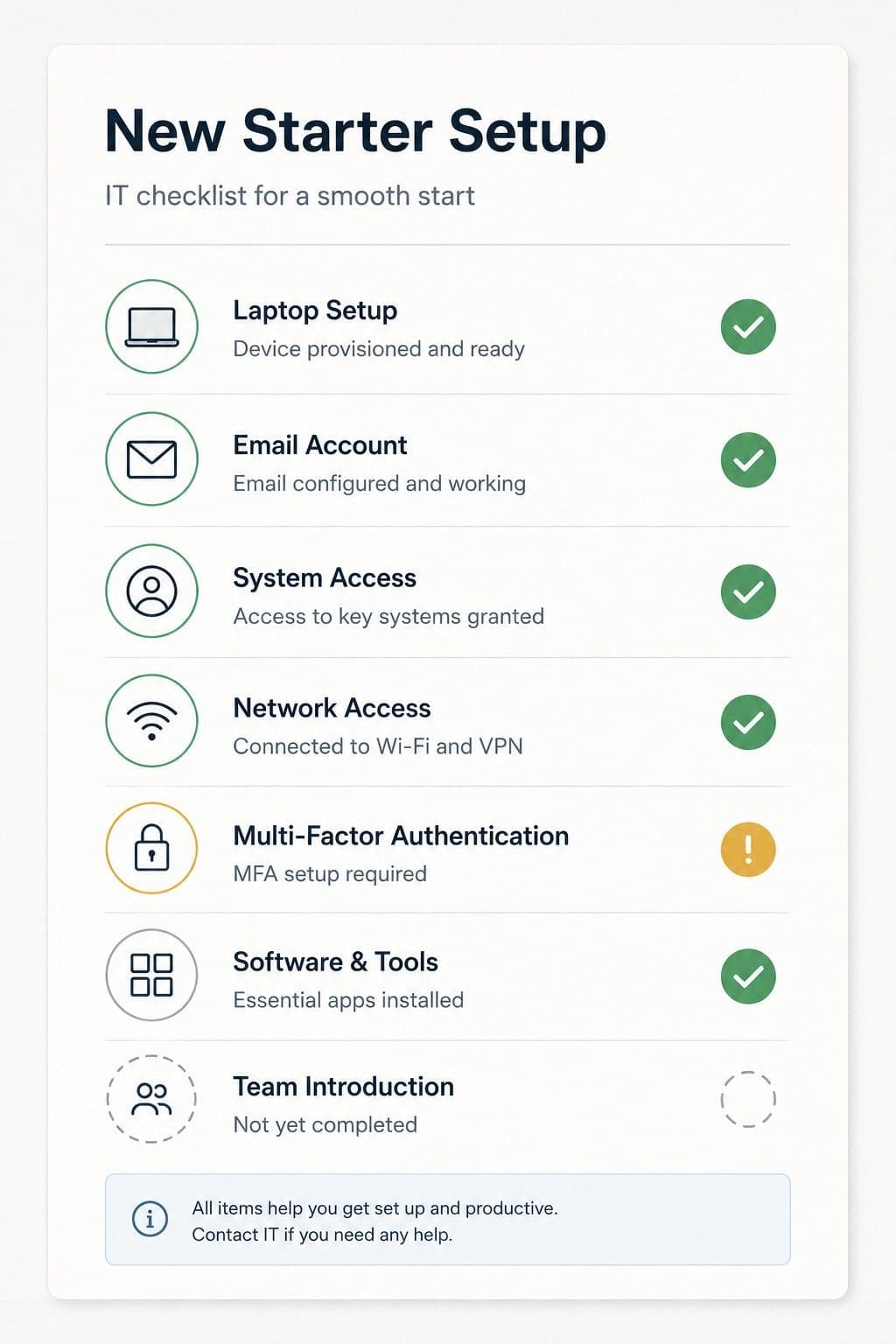
The New Employee IT Onboarding Checklist
Hiring someone new is exciting. Then day one arrives and you realize: they need an email address, access to files, logins to systems, and... you're not entirely sure what else.
If you don't have a dedicated IT person, new employee onboarding often means scrambling to set things up while the new hire waits.
Here's what business owners need to do (and what they often forget) when bringing someone new into the business from an IT perspective.
Why IT Onboarding Matters
Bad onboarding looks like this:
- New employee shows up day one
- No email address ready
- No access to files or systems
- Credentials shared via sticky notes or plaintext emails
- IT access is "figured out" over the first week as needs arise
- Security is an afterthought
Good onboarding looks like this:
- Email address created before day one
- Access provisioned based on their role
- Credentials delivered securely
- Security expectations set from the start
- Clear process documented for future hires
The difference: professionalism, security, and efficiency.
The IT Onboarding Checklist
Before Day One
1. Create Email Account
What: Set up their business email (firstname@yourcompany.com)
Where: Google Workspace, Microsoft 365, or your email provider
Why: They need this to access most other systems. Do this before they start.
Don't forget:
- Add them to relevant email groups or distribution lists
- Set up email signature if you have a standard format
- Test that email sending/receiving works
2. Provision System Access
What: Decide what systems they need access to
Think through:
- File storage (Google Drive, Dropbox, shared folders)
- Project management tools (Asana, Trello, Monday.com)
- Communication tools (Slack, Teams, Discord)
- CRM or customer systems
- Accounting or invoicing software
- Industry-specific software
Key principle: Grant only what they need for their role. Don't give everyone access to everything. See examples of documented IT access for what this should look like.
3. Prepare Hardware (If Applicable)
If they need a laptop or equipment:
- Set up computer with necessary software
- Install security software (antivirus, VPN if applicable)
- Create user account (not shared admin account)
- Apply any security policies (disk encryption, password requirements)
If they're remote:
- Ship equipment early so it arrives before day one
- Include setup instructions
- Schedule tech support call for day one if needed
4. Create Documentation Access
What they need:
- Where to find company documentation
- How to access passwords (if using a password manager)
- Who to ask for IT help
- List of systems they'll use and their purpose
Format: Could be a simple document, wiki page, or shared folder.
Day One
5. Deliver Credentials Securely
What they need:
- Email login
- System logins
- Wi-Fi password (if in-office)
How to deliver credentials securely:
- In person: Write down temporarily, have them change passwords immediately
- Remote: Use a password manager (1Password, LastPass, Bitwarden) to share
- Never: Send passwords via plaintext email or Slack
Why it matters: Plaintext passwords in email are a security risk. Use secure methods from day one.
6. Set Up Two-Factor Authentication (2FA)
What: Enable 2FA on email and critical systems
Why: Passwords alone aren't enough. 2FA protects accounts even if passwords are compromised.
How: Walk them through setting up authenticator apps (Google Authenticator, Authy) or hardware keys
Don't skip this. If your business handles sensitive data, 2FA is essential.
7. Walkthrough of Systems
What: Show them where things are and how to access them
Cover:
- How to log into email
- Where shared files are stored
- How to use communication tools (Slack, Teams, etc.)
- Where to find documentation
- Who to ask for help
Format: Could be a 30-minute screen share or a recorded video they can reference.
8. Security and Policy Training
What: Set expectations for security and appropriate use
Topics to cover:
- Password requirements (length, complexity, don't reuse)
- Don't share credentials
- How to spot phishing emails
- What to do if they suspect a security issue
- Appropriate use of company systems
Format: Doesn't need to be formal training. A 10-minute conversation and a written policy document is enough for most small businesses.
Document it: Have them acknowledge they understand the policy (email confirmation is fine).
First Week
9. Check In on Access Issues
What: Verify everything works and fix any gaps
Ask:
- Can you access everything you need?
- Are there systems you expected to have access to but don't?
- Any login issues or confusing setups?
Why: It's easier to fix access issues early than to discover them weeks later when they needed something urgently.
10. Add to Communication Channels
What: Add them to relevant Slack channels, email groups, team meetings
Don't forget:
- Internal announcements
- Team-specific channels
- Company-wide updates
- Optional: Social channels
Avoid: Adding them to everything. Only relevant channels.
First Month
11. Review and Adjust Access
What: Check if initial access was correct
Ask:
- Do you have access to everything you need for your role?
- Is there anything you have access to but don't actually use?
Why: Initial access is often a guess. A month in, you'll know what they actually need.
12. Document Their Setup
What: Keep a record of what access they have
Include:
- Email address
- Systems they have access to
- Role-specific tools
- Any special permissions
Why: When they eventually leave, you'll need to know what to revoke. If you don't document it now, you'll forget.
Common IT Onboarding Mistakes
Mistake #1: Creating Email After They Start
Problem: They show up day one with no email, can't access anything, sit around waiting
Fix: Create email account at least 2 days before their start date. Test it works.
Mistake #2: Sharing Credentials Insecurely
Problem: Passwords sent via email, Slack, or sticky notes
Fix: Use a password manager to share credentials securely. Or deliver in person and have them change immediately.
Mistake #3: Giving Admin Access to Everyone
Problem: New hire gets admin privileges "because it's easier." Major security risk.
Fix: Grant minimum access needed for their role. Admin access only for people who actually need it.
Mistake #4: Reusing Old Employee Accounts
Problem: New person uses former employee's email or accounts to "save time"
Fix: Always create new accounts. Former employee accounts should be disabled, not repurposed.
Why: Audit trails get confusing, and you don't know what access the old account had.
Mistake #5: No Security Training
Problem: New employee has access but doesn't know security expectations. Many insurance providers now require documented security training for all employees with system access.
Fix: Brief security conversation on day one. Written policy they can reference.
Minimum topics: Password security, phishing awareness, don't share credentials.
Mistake #6: Not Documenting Access
Problem: No one knows what systems the employee has access to
Fix: Maintain a simple spreadsheet or document listing employee access by role.
Why: When they leave, you need to know what to revoke.
What About Remote Employees?
Remote onboarding requires extra planning:
Ship Equipment Early
- Laptop, monitors, peripherals
- Ship 3-5 days before start date
- Include setup instructions or links to setup videos
Schedule Setup Calls
- Day one: 30-minute tech setup call (email, systems, logins)
- Ongoing: Slack channel or email support for questions
Secure Shipping of Credentials
- Best: Use a password manager to share logins
- Good: Deliver credentials via secure video call (read aloud, have them change immediately)
- Never: Ship passwords via regular mail or unsecured email
Test Everything Before Day One
- Can they log into email? VPN? File storage?
- Do a dry run 1-2 days early if possible
Access Levels by Role (Examples)
Every business is different, but here's a starting framework:
All Employees (Baseline Access)
- File storage (Google Drive, Dropbox)
- Communication tools (Slack, Teams)
- Calendar
- Company documentation
Customer-Facing Roles (Sales, Support)
- CRM (Salesforce, HubSpot, etc.)
- Customer communication tools
- Knowledge base or documentation
- Ticketing system
Finance/Admin Roles
- Accounting software (QuickBooks, Xero)
- Invoicing tools
- Banking (view-only unless necessary)
- HR systems
Technical Roles (Developers, IT)
- Code repositories (GitHub, GitLab)
- Server access (SSH, cloud dashboards)
- Development tools
- Admin privileges (only if needed)
Management/Leadership
- Financial systems (full access)
- Admin access to critical systems
- Analytics and reporting tools
Key principle: Start with less access. It's easier to grant more later than to take it away.
Security Considerations for New Hires
1. Background Checks (If Applicable)
For roles with access to sensitive data or financial systems, consider background checks before granting full access.
2. Probationary Access
For the first 30-90 days, limit access to only what's necessary. Expand after probationary period if applicable.
3. Monitor for Unusual Activity
Not paranoid surveillance — just awareness. If a new hire accesses unusual systems or data in the first week, check in.
4. Revoke Sample/Test Data Access
If you gave them access to test systems or sample data during training, revoke it once they're on production systems.
Onboarding Checklist Template
Here's a simple checklist you can use (adapt to your business):
☐ Email account created (before day one)
☐ Added to relevant email groups/distribution lists
☐ File storage access granted (Google Drive, Dropbox, etc.)
☐ Communication tool access (Slack, Teams, etc.)
☐ Role-specific systems access granted
☐ Hardware prepared (if applicable)
☐ Credentials delivered securely
☐ 2FA enabled on email and critical systems
☐ Walkthrough of systems (day one)
☐ Security policy reviewed and acknowledged
☐ Added to communication channels
☐ Access documented (for future reference)
☐ 30-day check-in scheduled to review access
What to Document for Each Employee
Keep a simple record:
Employee: [Name]
Start Date: [Date]
Email: [address@company.com]
Role: [Title]
Systems Access:
- Google Drive (Editor)
- Slack (Member)
- CRM (Standard User)
- Accounting (View Only)
Hardware Assigned:
- Laptop: MacBook Pro (Serial: XYZ123)
- Monitor: Dell 27" (Serial: ABC456)
2FA Enabled: Yes / No
Last Access Review: [Date]
Notes: [Any special permissions or context]
When They Leave (Offboarding)
This is the flip side of onboarding, but plan for it now:
Immediate Actions (Day of Departure)
- Disable email account
- Revoke access to all systems
- Collect hardware
- Change any shared passwords they knew
Within 24 Hours
- Review audit logs for unusual activity
- Remove from communication channels
- Update documentation to reflect they're no longer with company
Within 1 Week
- Reassign their responsibilities
- Review if they had access to anything you forgot about
- Archive their email (don't delete — you may need it)
This is why documenting access during onboarding matters. When someone leaves, you'll know exactly what to revoke.
Bottom Line for Business Owners
Good IT onboarding is simple:
- Set up email and access before day one
- Deliver credentials securely
- Enable security measures (2FA, strong passwords)
- Document what access they have
- Check in after 30 days
Bad IT onboarding: Scrambling day one, insecure credential sharing, no documentation.
The cost of good onboarding: 2-3 hours of setup time per employee
The cost of bad onboarding: Security risks, lost productivity, confusion, and cleanup later
Many owners only realize these gaps after something changes — a vendor leaves, a certificate expires, or an insurance renewal asks unexpected questions.
Explain My IT exists to create a dated, owner-readable record of what's visible from the outside — so you don't have to reconstruct this later.
Ready to see your IT setup?
🎯 Run your free snapshot → — See your current configuration in 60 seconds
📅 Want this monthly with full history? See Basic subscription → ($15/month)
Related reading:
Alex Parker
IT Advisor